How to Set Stop Loss and Take Profit on Topstep: TopstepX Brackets, Auto-OCO, and the Loss Limits (2026 Guide)
The three TopstepX bracket methods, the tick and dollar rules that get orders rejected, mobile steps, and how to place a stop that respects the Maximum Loss Limit.
To set a stop loss and take profit on Topstep, open TopstepX and either drag a bracket off your position indicator on the chart, turn on Position Risk / Profit Brackets with dollar amounts, or enable Auto-OCO Brackets in ticks or dollars while you are flat. Brackets must sit at least 4 ticks from entry, an Auto-OCO tick value must be greater than 5, and a stop is a stop market order that can fill past your price, so the Maximum Loss Limit can still be breached in a fast market.
To set a stop loss and take profit on Topstep, open TopstepX and use one of its three bracket tools: drag a stop and target off your position indicator on the chart, switch on Position Risk / Profit Brackets and type the dollar amounts, or switch on Auto-OCO Brackets in ticks or dollars before you enter. Any of the three puts a working stop and a working target on the position, and when one fills the other cancels.
The clicks are the easy part. What decides whether the stop does its job on a Topstep account is a set of rules a normal broker does not have: brackets closer than 4 ticks get rejected, you have to be flat to change bracket types, and the stop sits underneath a Maximum Loss Limit that counts open losses in real time. This guide walks through each bracket method, the mobile steps, the tick and dollar math for the common micro and E-mini contracts, and a worked example of a stop sized against the loss limit.
Three ways to set a stop loss and take profit on TopstepX
TopstepX gives you three routes to the same result. They differ in when you set the numbers and whether one bracket covers the whole position or each fill gets its own.
- Drag from the chart. Enter the trade, then click your position indicator and drag up or down to create the stop or the target. Nothing is preset; you place every level by hand.
- Position Risk / Profit Brackets. You set a dollar risk and a dollar profit once, and TopstepX attaches them to every position automatically. One stop and one target cover the full position and resize as the position changes.
- Auto-OCO Brackets. You set the stop and target in ticks or dollars from entry, and every entry gets its own pair. Add to a trade three times and you have three brackets.
This guide covers TopstepX, the platform Topstep builds and calls its own. Traders who reach a Topstep account through a different platform will find different bracket screens there, so check that platform's documentation before trading.
How to set stop loss and take profit on Topstep from the chart, step by step
The chart method is the one most people learn first, because it needs no setup. Topstep's TopstepX help article describes it in one line: click your position indicator and drag up or down to set a TP or SL bracket, and modify it the same way.
- Open the chart for the contract you trade and enter the position with a market or limit order.
- Find the position indicator, the marker on the chart at your average entry price.
- Click it and drag away from price in the losing direction to create the stop loss. On a long, that is down; on a short, up.
- Click it again and drag in the profitable direction to create the take profit.
- Check that both orders now show as working orders on the chart and in the orders panel.
- To move either level, drag the order line to the new price. To remove one, click the X next to the working order.
The weakness of this method is time. Between the fill and the moment you finish dragging, the position has no stop at all. On a quiet tape that gap is a few seconds and costs nothing. Into a data release, a few seconds is enough for the trade to be down more than you planned to risk, with no order in place to stop it. If you trade around scheduled news, or you hesitate when a fill comes in, use one of the automatic methods instead.
Position Brackets: one stop and one target in dollars
Position Risk / Profit Brackets are the set-and-forget option. In TopstepX you toggle Position Risk / Profit Brackets on and enter a Risk amount and a Profit amount in dollars. From then on, every position gets a stop at that dollar loss and a target at that dollar gain, without you touching the chart.
Two details from Topstep's documentation matter here. The minimum distance a Position Bracket can be placed is 4 ticks from the entry price, so a bracket tighter than that will not go in. And the Risk and To Make levels update as size changes: add a contract and TopstepX recalculates where the single stop and single target have to sit so the whole position still risks your set dollar amount. You can also adjust a live trade by dragging the P&L bar on the chart.
That resizing is the point of the tool and also its trap. Say your Position Bracket risk is $200 and you are long 2 MNQ. Add a third contract and the stop moves closer to price, because the same $200 now has to cover three contracts. Your dollar risk stayed fixed, but your stop may now sit inside the noise of the chart instead of beyond the swing low you picked it from. If you scale in often, check the stop's price on the chart after each add as well as the dollar figure.
Tradesyncer's notes on TopstepX brackets describe the same behavior from the copier side: ProjectX, the engine under TopstepX, creates one TP and one SL for your whole position and updates them as your position size changes. Position Brackets are dollar amounts only.
Auto-OCO Brackets: a separate bracket for every entry
Auto-OCO Brackets attach a stop and a target to each entry as it fills. OCO stands for one cancels other: when the stop fills, the target is cancelled, and the other way round. You set the distance in ticks or in dollars from your entry, and Topstep's rules for each unit are different.
- In ticks, TopstepX requires a value greater than 5 ticks.
- In dollars, TopstepX rejects the order if the dollar value you entered does not put the bracket at least 4 ticks from the entry price.
- You must be flat to enable Auto-OCO or to switch between bracket types. You cannot change your mind halfway through a trade.
- If you place orders from the DOM, OCO has to be enabled there as well. Turning it on in one place does not cover the other.
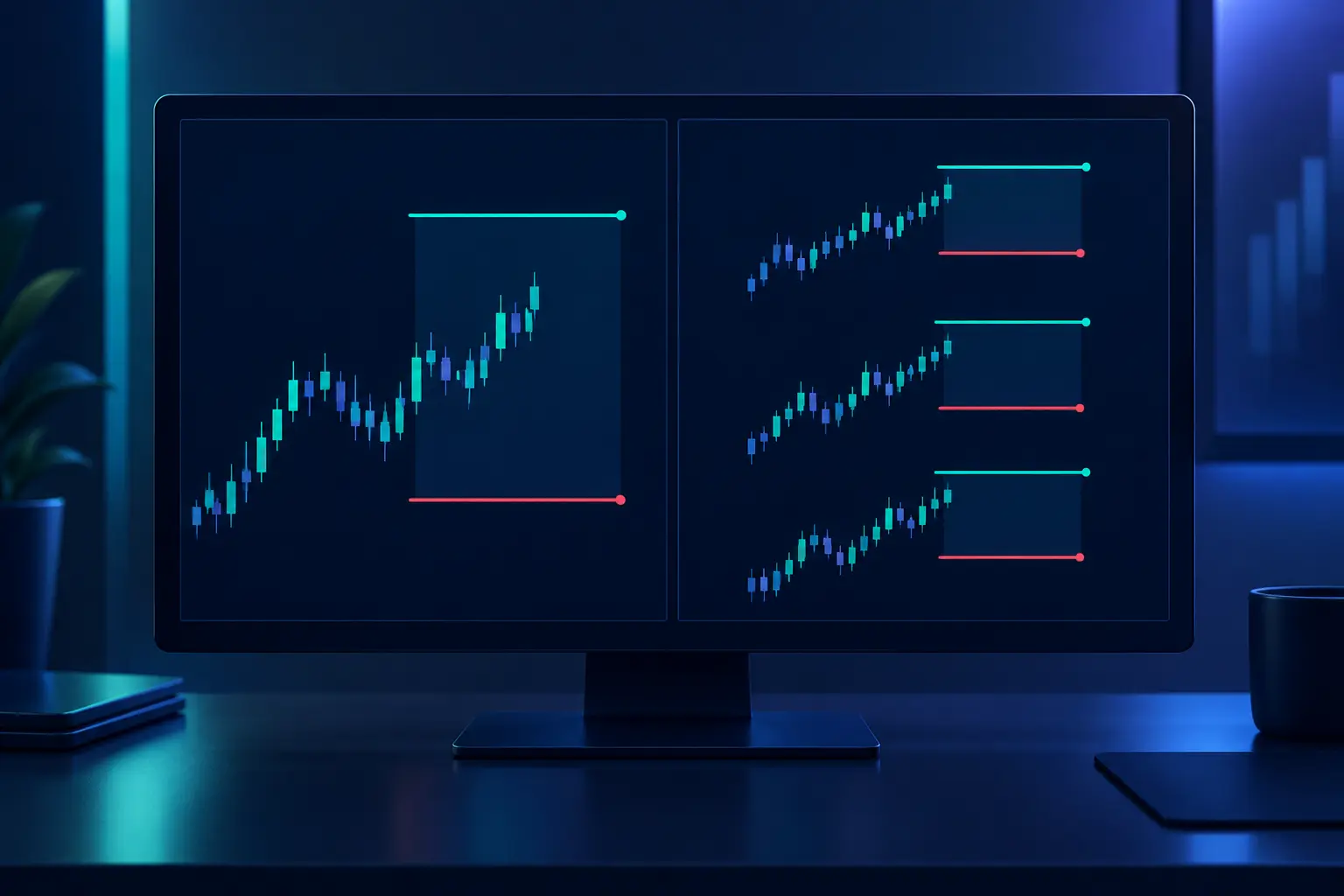
Per-entry brackets suit traders who scale in and out. Buy 1 MNQ, then a second on a pullback, and each contract has its own stop and target measured from its own fill. The first can hit target while the second is still working. The cost is clutter: three adds means six working orders, and if you move one stop by hand the others do not follow.
Position Brackets or Auto-OCO: which to use
Pick by how you trade. If you take one entry and one exit, either works, and Position Brackets are simpler because you think in dollars per trade. If you scale in and want the whole position to share one stop below one level, Position Brackets fit, as long as you check where the stop lands after each add. If you scale out in pieces, Auto-OCO fits better, because each piece can have its own target.
One case has a firm answer. If you copy trades from a leader account to followers, Tradesyncer's documentation says to turn bracket settings off on the followers, because otherwise ProjectX adds its own TP and SL every time a copied trade enters, and the follower can exit at a different price or exit twice. For TopstepX as a follower, Tradecopia gives a specific setting: Auto OCO Bracket on and Auto Position Bracket off. Follow your copier's instructions over any general advice here.
How to set stop loss and take profit on Topstep mobile
There is no TopstepX mobile app. Topstep's help article says so directly: there is currently no mobile app, and you trade from your phone's browser. Two things make it work.
- In your phone browser's settings, make sure Desktop Mode is turned off. Topstep's help article asks for this so the mobile layout loads.
- To set a stop or target from the chart, tap your position indicator, then drag up or down, the same motion as on desktop.
- On the mobile DOM, you place a stop market order by tapping Bid Size for a buy stop above the market, or Ask Size for a sell stop below the market.
- Once a position shows a positive unrealized P&L, a B/E (breakeven) button appears. Tapping it moves the stop to your entry price.
Dragging a line with a thumb on a small screen is imprecise, and traders complain that the stop and profit lines are hard to move on a phone. The fix is to stop relying on the drag. Set Position Brackets or Auto-OCO from a desktop session before you leave, and the phone only has to watch a trade that already carries both orders. Hotkeys are desktop only and do not work on mobile.
Tick and dollar math for MES, MNQ, ES, and NQ
Auto-OCO asks for ticks or dollars, and Position Brackets ask for dollars, so you need to convert between the two for the contract you trade. A tick is the smallest price step a futures contract can move. For the four equity-index contracts most Topstep traders use, the tick size is 0.25 index points, and the dollar value of one tick depends on the contract's multiplier.
- MES (Micro E-mini S&P 500): $5 per point, so $1.25 per tick.
- MNQ (Micro E-mini Nasdaq-100): $2 per point, so $0.50 per tick.
- ES (E-mini S&P 500): $50 per point, so $12.50 per tick.
- NQ (E-mini Nasdaq-100): $20 per point, so $5.00 per tick.
The conversion is ticks times tick value times contracts. A 20-tick stop on 1 MES risks 20 × $1.25 = $25. The same 20 ticks on 1 NQ risks $100, and on 1 ES risks $250. Check these against the exchange's current contract specs before you rely on them; they change rarely, but the exchange is the authority.
Bar chart of the dollar risk of a 20-tick stop on one contract: MNQ $10, MES $25, NQ $100, ES $250. The same tick distance risks 25 times more on ES than on MNQ.
The minimums from the previous sections read differently per contract. On MNQ, the 4-tick minimum is a single index point and $2 per contract, which almost never binds. A dollar-based Auto-OCO stop of $5 on 1 MNQ is 10 ticks and goes through. A $5 stop on 1 ES would be less than one tick and gets rejected. If TopstepX refuses a bracket, do the conversion first: the dollar amount you typed may be shorter than 4 ticks for the contract and size you hold.
Where the stop goes relative to the Maximum Loss Limit
On a Topstep account, your stop is not the last line of defense; the Maximum Loss Limit (MLL) is. Topstep's Maximum Loss Limit article defines it as the lowest point your account balance is allowed to reach, and it counts both realized and unrealized P&L. If an open trade drags the balance down to that level, the account is liquidated on the spot.
The starting MLL is $2,000 below the starting balance on a 50K account, $3,000 on a 100K, and $4,500 on a 150K. It trails: it rises as your end-of-day balance grows and never moves down, and once it reaches the starting balance it locks. Topstep's own example: a 50K Trading Combine starts with the MLL at $48,000, a $500 gain on day one moves it to $48,500, and a $500 loss on day two leaves it at $48,500.
Line chart of an illustrative 50K Trading Combine over five days. End-of-day balance goes 50,000, 50,500, 50,000, 51,200, 50,700, 51,000. The Maximum Loss Limit goes 48,000, 48,500, 48,500, 49,200, 49,200, 49,200. Room above the limit shrinks from 2,000 to 1,500 on day 2 and is 1,800 by day 5.
What this means for stop placement: the distance that matters on a Topstep account is the one between your current balance and the MLL, and it shrinks after every winning day you give back. In the chart above, a trader who closed day 3 at $51,200 and day 4 at $50,700 now has $1,500 of room, not $2,000.

A worked example: sizing the stop against the room you have
Take the day 5 account from the chart: balance $51,000, MLL $49,200, so $1,800 of room. The numbers below are an illustration, not a trade.
You plan a long on MNQ. The chart puts the stop below a swing low 30 points under your entry, which is 120 ticks, or $60 per contract. Decide first how much of the $1,800 room one trade can use. One way is to cap a single trade at a fraction of the distance to the limit, so a losing streak cannot reach the floor in two or three trades; say you pick 15%, which is $270.
- $270 ÷ $60 per contract = 4.5, so you trade 4 MNQ, risking $240.
- In Position Brackets you would set Risk to $240. In Auto-OCO in ticks you would set the stop at 120 ticks.
- If your target is twice the stop distance, the take profit sits 60 points, or 240 ticks, above entry: $480 on 4 contracts.
Run the same plan the wrong way round and you see why the order matters. A trader who starts with "I trade 4 NQ" puts a 30-point stop at $600 per contract and $2,400 total, which is more than the whole $1,800 of room. That stop would never fill as a stop: the account would hit the MLL and be liquidated first. Choose the stop from the chart, then the size from the room. Our risk management guide covers the sizing method in more depth, and the 15% figure is a choice to adjust to your own plan, not a Topstep rule.
Daily Loss Limit and Personal Daily Loss Limit: backstops for the session
Topstep has two more loss controls above your stop, and neither of them replaces it.
The Daily Loss Limit (DLL) is optional on the Trading Combine and Express Funded Account and automatic on the Live Funded Account. Topstep's Daily Loss Limit article lists it at $1,000 for a 50K account, $2,000 for 100K, and $3,000 for 150K. When net P&L hits it, open positions are flattened, pending orders are cancelled, and you cannot trade again until 5 PM CT. Hitting it is not a rule violation and the account stays eligible. A DLL chosen at purchase stays with that account for its life and cannot be changed.
The Personal Daily Loss Limit (PDLL) is one you set yourself in Risk Settings, and you choose what happens when it is hit:
- Do Nothing keeps you trading, so it works only as an alert.
- Liquidate closes your positions. To trade again you must raise the PDLL by at least the amount that was liquidated, or switch it to Do Nothing.
- Liquidate and Block closes positions and locks you out for the session, and a PDLL set this way cannot be removed.
TopstepX's Risk Settings add a Daily Risk Lock that freezes these settings until the next trading day, and a Lockout that closes everything immediately and cannot be cancelled once applied. These are for the day you know you are tilting. Set them in the morning, before the first trade, when you are still thinking straight. For when to stop for the day in general, see our guide on loss limits and trade caps.
Why a Topstep stop can fill past your price
Every stop on TopstepX is a stop market order. Topstep's order types and slippage article puts it plainly: a stop triggers at your stop price, then executes like a market order at the best available fill, with no price guarantee. Market orders guarantee a fill, not a price.
This is not a Topstep quirk. FINRA's investor guidance on stop orders in volatile markets says a stop order becomes a market order once the stop price is reached and may execute at a price significantly different from the stop price when prices are moving fast. A stop limit order caps the price, but FINRA notes there is no guarantee it executes at all, and on a prop account an unfilled stop is the worse outcome.
The places slippage shows up most are the ones Topstep lists: economic releases, unexpected events, and the reopen after news hits while the market is closed. Topstep's article also warns that realized losses can exceed your Maximum Loss Limit or Personal Daily Loss Limit because of slippage, and that unrealized losses can briefly cross a risk threshold before a stop executes.
The MLL article gives the case that catches traders out. With an MLL of $48,000 and a balance of $50,000, an open trade drops the balance to $47,750. The exit then fills and the final balance comes back to $48,050, above the limit. The account is still liquidated, because the breach happened while the trade was open. The practical rule: never place a stop so close to your MLL that a few ticks of slippage would carry the open loss through it. Leave a buffer for slippage between your worst-case stop fill and the limit, and widen it on news days.
Trailing stops and breakeven on TopstepX
TopstepX lists a trailing stop among its order types: a stop that trails the market in set increments as price moves away from it. Topstep's help article does not give step-by-step setup for it, so test it in a Practice Account before you use it on an evaluation.
The simpler tool is the B/E button, which appears once a position shows a positive unrealized P&L and moves the stop to your entry. It is tempting to tap it the moment a trade goes green. Doing that on a normal pullback turns a working trade into a scratch, and a string of scratches costs commissions without ever paying a target. Move to breakeven when the chart gives a reason, such as a new higher low forming above your entry on a long, not when the P&L turns positive. Our trailing stop loss guide works through the give-back math for each way of sizing a trail.
Picking the stop and the target from the chart
The bracket tools only carry out a decision you have to make first: where the trade is wrong. A stop works best at a price where your reason for the trade no longer holds.
- On a long, that is usually a few ticks beyond the most recent swing low that the setup depends on. On a short, beyond the swing high.
- If the nearest structure is too far away for your room above the MLL, the fix is fewer contracts or a skipped trade. Moving the stop closer to fit the dollars puts it inside normal price movement, where it gets hit by noise.
- For the target, look for the next level where price has turned before: a prior high, a range edge, or a level that has held two or three times. Our guide to reading support and resistance covers how to find them.
Topstep's evaluation adds one more constraint on targets. Its Trading Combine parameters page says your best single day should stay below 55% of your Profit Target to avoid increasing your Consistency Target. A Personal Daily Profit Target in Risk Settings can stop you trading once you reach a set gain, which some traders use to stay under that line.
Common mistakes
- Trading naked between fill and bracket. Dragging brackets by hand after entry leaves the position without a stop for those seconds. Set Position Brackets or Auto-OCO before entries that come into news.
- Typing dollars without converting to ticks. A small dollar stop on ES or NQ can fall under the 4-tick minimum and get rejected. Convert first.
- Trying to switch bracket type mid-trade. You must be flat to change between Position Brackets and Auto-OCO.
- Forgetting the DOM toggle. Auto-OCO on the chart does not cover orders sent from the DOM unless OCO is enabled there too.
- Sizing from the account size. A 50K account does not have $50,000 to lose; it has the distance to the MLL. Size from that.
- Treating the DLL or PDLL as your stop. Topstep calls the Personal Daily Loss Limit a backstop, not a substitute for a stop loss. It reacts after the loss, while the stop limits it.
- Leaving Desktop Mode on in the phone browser. Topstep's mobile instructions ask for it to be off.
FAQ
How do I set a stop loss and take profit on TopstepX?
Click your position indicator on the chart and drag down for a stop and up for a target on a long (the reverse on a short). Or, before you trade, turn on Position Risk / Profit Brackets with dollar amounts, or Auto-OCO Brackets in ticks or dollars, so every entry gets both orders automatically.
Why does TopstepX reject my bracket order?
The usual cause is distance. Brackets must sit at least 4 ticks from entry, and an Auto-OCO value in ticks must be greater than 5. A dollar value that works out to fewer than 4 ticks for your contract and size is rejected. Also check that you were flat if you tried to change bracket types.
How do I drag my stop loss on Topstep on an iPhone?
Open TopstepX in your phone's browser with Desktop Mode off, tap your position indicator, then drag up or down. If dragging on a small screen keeps misplacing the line, set Position Brackets or Auto-OCO from a desktop beforehand so the orders are already in place.
What is the difference between Auto-OCO and Position Brackets on Topstep?
Position Brackets keep one stop and one target, in dollars, for the whole position and resize them when the position size changes. Auto-OCO gives every entry its own stop and target, in ticks or dollars, so scaling in creates several separate brackets.
Does a stop loss stop me from hitting the Maximum Loss Limit?
Not always. The stop is a stop market order and can fill past its price, and the MLL counts unrealized losses in real time. If an open loss touches the MLL before the stop fills, the account is liquidated even if the exit comes back above the limit.
Can I change my Daily Loss Limit on Topstep?
A DLL you chose when buying or resetting the account stays with that account for its life and cannot be adjusted. A Personal Daily Loss Limit set in Risk Settings can be changed or removed, unless you set it to Liquidate and Block or applied a Daily Risk Lock.
Does Topstep have a trailing stop?
TopstepX lists a trailing stop order type that trails the market in set increments. There is also a B/E button that moves your stop to entry once the trade is in profit. Test both in a Practice Account first.
From the chart to the bracket
Every step above starts from one decision: the price where your trade idea is wrong. TopstepX can hold a stop and a target at that price once you have found it, but it cannot pick the price for you. Quant AI reads a screenshot of your chart and marks the swing points and support and resistance levels it finds, so you can see where a structural stop and the next target sit before you type numbers into a bracket. It does not know your Maximum Loss Limit or your size, and the sizing math against the room you have left stays your job.